Putting Translations on a Screen
The Projector page shows one language on a big screen for everyone not holding a phone — where to find it, how to set the language and text size, and what it means for your bill.
Written By Dennis Dueck
Last updated About 1 month ago
Putting the translation on a screen
Not everyone in your building is holding a phone. Older members, visitors who did not bring one, children — and anyone who would simply rather not look down for an hour.
The Projector page puts one language up on a screen, at whatever size the back row can read.
Where can I find the Projector page?
It is not in the sidebar. Open it from the Translation page: click Open projector view, pick a language, and the projector opens in a new tab, ready to drag onto your second screen.
It also has its own address, which is worth bookmarking once you have it set up:
https://admin.churchtranslation.org/projector
Choosing the language
The usual way is from the Translation page. Click Open projector view and choose from the list under Pick a language to open. The projector opens in a new tab showing that language. Languages your church has switched off are in the list too, marked (switched off), so you can put one on the screen even when nobody is reading it on a phone.
The language you picked is written into that tab's address. Once you have it, you can bookmark it and skip the picker next week — or type it yourself:
https://admin.churchtranslation.org/projector?language=de — German
https://admin.churchtranslation.org/projector?language=es — Spanish
https://admin.churchtranslation.org/projector?language=uk — Ukrainian
Open the address with no language at all and it uses the language you are speaking in — which is useful in its own right, as a live subtitle of the service for anyone hard of hearing.
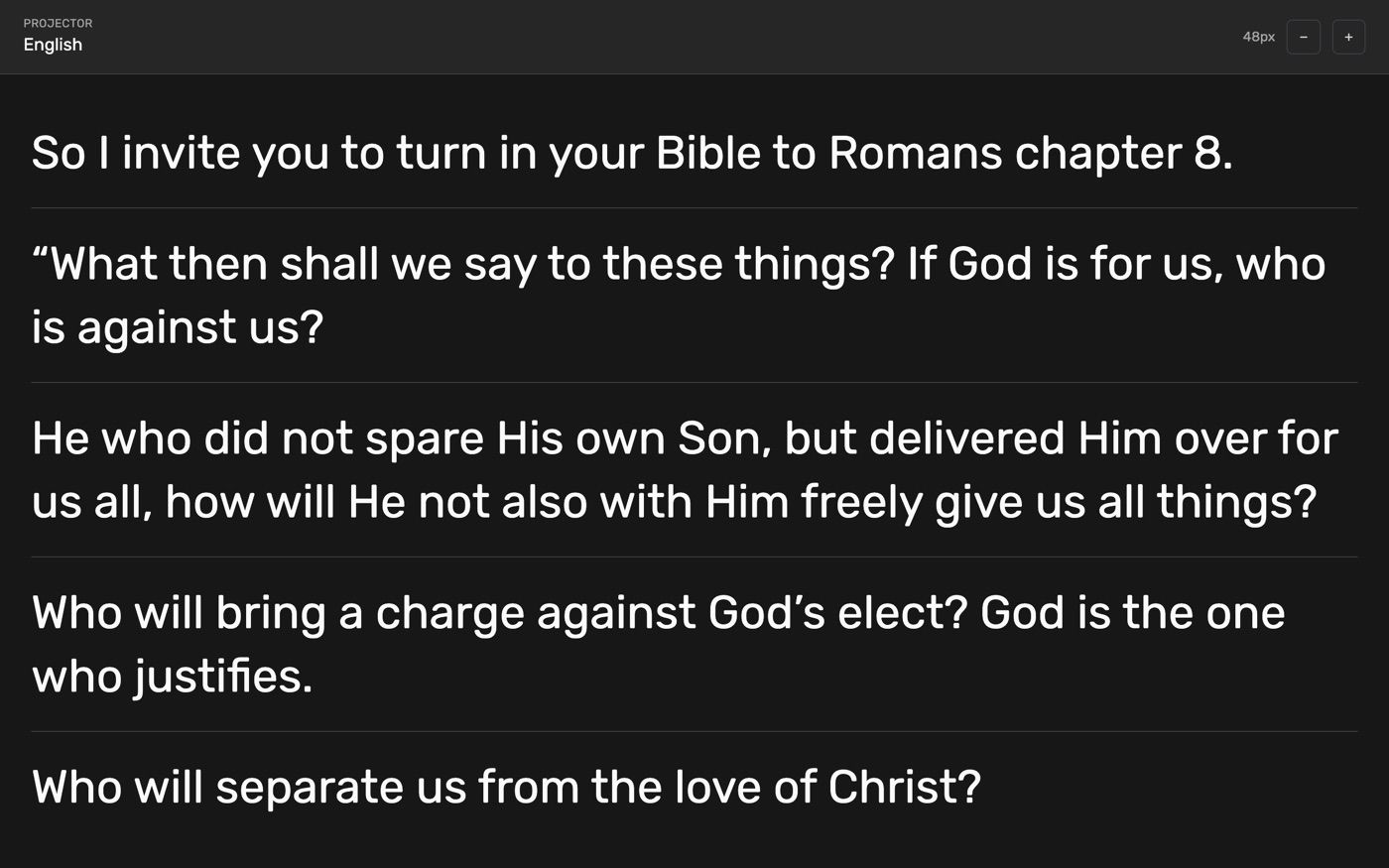
The language currently showing is written at the top left, under the word Projector. If it says No language selected, the address is missing a language and your account has no speech-to-text language set.
Setting the text size
Use the + and − buttons at the top right. The current size is shown beside them in pixels.
Anything from 16 to 128 pixels
It starts at 48, which suits most rooms
The size is remembered on that computer, so next Sunday it opens exactly as you left it
You can also set it in the address if you are preparing a link for someone else:
https://admin.churchtranslation.org/projector?language=de&fontSize=72
Set the size from the back of the room, not from the desk. Walk to the furthest seat, then ask someone to press + until you can read it comfortably.
Setting it up on a second screen
Connect your projector or television to the dictation computer as a second screen, extended rather than mirrored.
Open a new browser window, drag it onto that screen, and make it full screen.
Go to the projector address with your language.
Leave it. It updates itself for the rest of the service.
Your Translation page stays on your own screen, untouched, on the first display.
The page shows today's service and scrolls itself to the newest line, so there is nothing to operate once it is running. Before anyone speaks it reads Waiting for translations….
The one thing to know about cost
A language showing on the projector counts as being listened to.
Church Translation switches off languages that nobody is reading, to keep your bill down. The projector serves precisely the people who are not holding a phone — so while it is open, that language is never switched off.
This works in your favor, but be aware of the other side of it: a projector window left open all week keeps that language switched on all week. Close the window after the service, or at least when you shut the computer down.
💡 If you deliberately want one language always available — because you always have Ukrainian speakers, say — leaving the projector open during services is a reliable way to guarantee it. Just close it afterwards.
Practical suggestions
Dark room, dark page. The page is white text on near-black by design, which projects far better than the reverse.
One language per screen. If you need two, open two windows on two outputs with different language codes.
Test it on Saturday. Font size, screen position and cabling are all much easier to sort out when nobody is waiting.
Bookmark the finished address. Once you have the language and size right, save that exact link so next week is one click.
Was this helpful?
Still need help? Ask the team