Managing Your Community
Who has joined your church, who is reading right now and in what language, how to approve new visitors and languages, and how much of it to automate.
Written By Dennis Dueck
Last updated About 1 month ago
Knowing who is actually using it
Two questions come up in every church that starts using Church Translation. Is anyone really using this? and is it worth what we are paying?
This page shows you where the answers are.
Where can I find the User Management page?
Go to https://admin.churchtranslation.org/user-management, or click User Management in the sidebar.
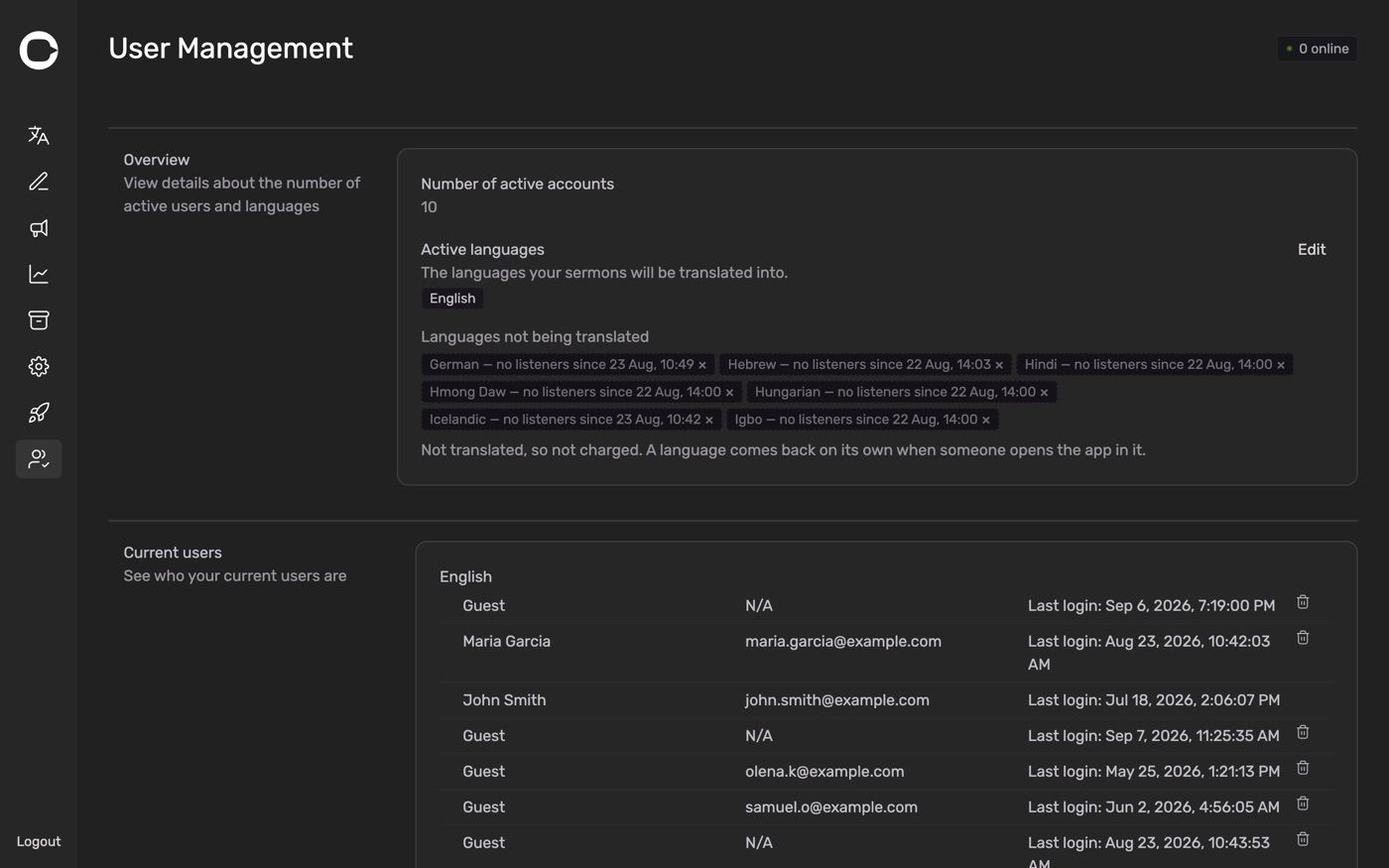
The Overview
Number of active accounts is how many people have joined your church, in total, across all time. It grows slowly and steadily, and it is the number to quote to a church council: forty-one people have joined, and we have been running since March.
Activated languages lists the languages your church currently translates into. Read this one with your bill in mind — every language on it is translated on every utterance of every service.
If a language is on that list and nobody has read it in months, it is costing you money for nothing. Stewardship: Making the Most of Your Resources explains how to have those switched off automatically.
Current users
Below the overview, Current users lists the people who have joined.
People who signed in with Google or Apple appear with their name. People who joined as guests appear as guests, because that is genuinely all we hold about them — no email, no name, nothing to identify them by. See Your Account and Your Privacy for what visitors are told about this.
Who is online right now
During a service, the more useful view is on the Translation page: the Users Online list in the bottom right.
For each person following along you see:
Their name and email, if they signed in with Google or Apple
Guest, if they did not
The language they are reading in
The list scrolls if there are more people than fit.
This is the single most encouraging thing on the dashboard, and the most useful. It tells you this Sunday, seven people are reading in Ukrainian — which is worth far more than any monthly average when you are deciding what to keep paying for.
If nobody has joined yet it reads No users are currently online.
💡 Take a note of the languages actually in use once a month. That short list, compared against your Activated languages, is the whole of cost control in one glance.
Letting people in
New arrivals show up in the notification area on the Translation page — Language and church requests will appear here.
Join requests. Someone who found your church by searching for it by name needs your approval. Click Accept or Decline.
Language requests. Someone has chosen a language you do not currently translate into. Accepting starts that language within seconds.
⚠️ Each language you accept is translated for the rest of the service, and stays on your list afterwards. It is the right thing to do for a person who cannot follow otherwise — just be aware you are agreeing to an ongoing cost, not a one-off.
Two ways in that never need approval
Your sign-in code and your QR code always let people straight in. Approval only ever applies to visitors who found you by searching the public list.
Both are in Settings → Translation settings → Sign in code, where you can also click Download QR Code to print it for the bulletin or put it on the screen.
This is why the QR code is the answer to almost every Sunday-morning problem: it skips the queue entirely.
Deciding how much to automate
Two switches in Settings → Translation settings decide how much your volunteers have to do. Both are off by default.
Automatically approve users*Allow anyone to join your church without approval.*
On — anyone who finds you in the public list joins instantly. Less work at the desk.
Off — you approve each one. More control over who is in your congregation's list.
There is no cost either way, so this is purely about how open you want to be. Most churches turn it on once they are used to the system.
Automatically approve languages*Allow visitors to select any language for translations.*
On — a visitor picks a language and translation starts immediately. Nobody is ever left out.
Off — a volunteer approves each new language.
This one does affect your bill, and it is the setting to think hardest about. On, your language list only ever grows: someone selects Ukrainian once, and Ukrainian is translated every Sunday afterwards whether or not they return.
The good combination for most churches: Automatically approve languages on, so nobody is turned away — plus automatic switching off of unused languages, so the list cleans itself up. See Stewardship: Making the Most of Your Resources. That gives you generosity and control at the same time, which used to be a choice between the two.
Removing a language for good
Automatic switching off is not the same as removing. To take a language off your list permanently, deselect it in Settings → Translation settings.
After that, a visitor who selects it again arrives as a request for you to approve, rather than being added silently.
Was this helpful?
Still need help? Ask the team