Equipment Checklist: What You’ll Need
To ensure a smooth experience for both your team and your visitors, we’ve broken down the requirements into three simple categories: The Audio Input, The Connection, and The Listener Experience.
Written By Dennis Dueck
Last updated 3 days ago
🎤 The Audio Source (The "Input")
The quality of your translation starts with the quality of your audio. The dictate mode works best when the voice is clear and background noise is minimal.
Option A: The Professional Setup (Preferred)
If your church uses a soundboard, this is the most reliable method.
Audio Interface: Connect your soundboard to your "Dictation Station" (laptop) using a USB audio interface (e.g., Focusrite Scarlett, Behringer U-Phoria) or a direct USB output if your desk supports it.
Direct Feed: Send a dedicated "Aux" or "Monitor" mix from the soundboard containing only the preacher’s microphone. This prevents music or congregational noise from interfering with the dictation accuracy.
Option B: The Simple Setup
Perfect for smaller settings or churches with minimal tech.
Mobile Device: A smartphone or tablet placed on the pulpit or a stand right next to the preacher.
Proximity is Key: If using the built-in microphone of a phone or laptop, you must be very close to the speaker. We recommend no more than 1–2 meters for best results.
💻 The Dictation Station
This is the device that "listens" to the sermon and sends it to our AI for translation.
The Device: A laptop (preferred for stability), tablet, or smartphone.
The Software: A modern web browser (Chrome or Edge are recommended) with access to your Church Translation dashboard.
Optional Transcriber: If your service is in a dialect (like Swiss German), you may want to consider a staff member at this station to repeat the sermon into a headset in standard "High German." This acts as a live "clean-up" to ensure 100% accuracy before the AI translates it into other languages.
🛜 Internet Requirements
Stability is more important than raw speed.
Stability: A wired Ethernet connection for your "Dictation Station" laptop is the gold standard - but Wifi will work too.
Congregation Wi-Fi: We highly recommend providing a Guest Wi-Fi or a dedicated translation Wi-Fi network for your visitors. This ensures they don't use up their own data plans while following along.
Mobile Data: 4G/5G mobile connections are usually sufficient if you have at least 3 bars of signal.
🎧 The Listener Experience
Our service is designed as BYOD (Bring Your Own Device), but a little preparation goes a long way.
Visitor Devices: Most visitors will use their own smartphones and headphones.
Backup "Lending" Devices: It is incredibly helpful to have 5–10 inexpensive tablets or smartphones (plus cheap headphones) available at the welcome desk for visitors who may not have a device or whose battery is low.
QR Codes: Have printed QR codes available or in the bulletin so visitors can join the translation instantly without typing in a URL.
🚨 Troubleshooting "No Audio" in the Browser
If you’ve connected everything but the translation software isn't "hearing" anything:
Check Browser Permissions: Ensure you clicked "Allow" when the browser asked for microphone access.
If the browser does not ask for permissions or you previously declined, check the browser settings
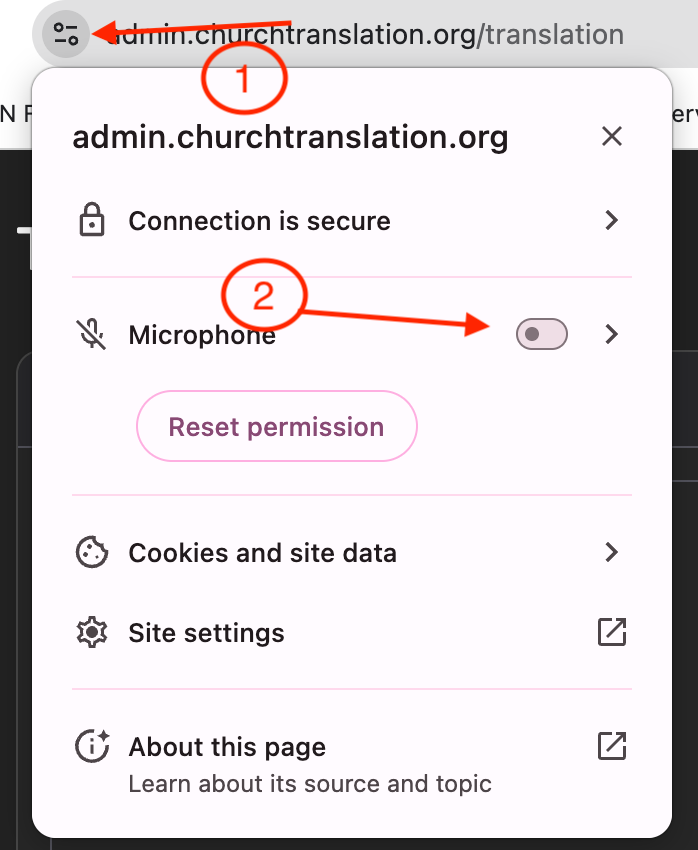
Chrome Select the Correct Input: Go to the settings page and select the correct audio input (It will be remembered next time). Once you switch to the Translation Page you’ll see the audio input name next to the record button.